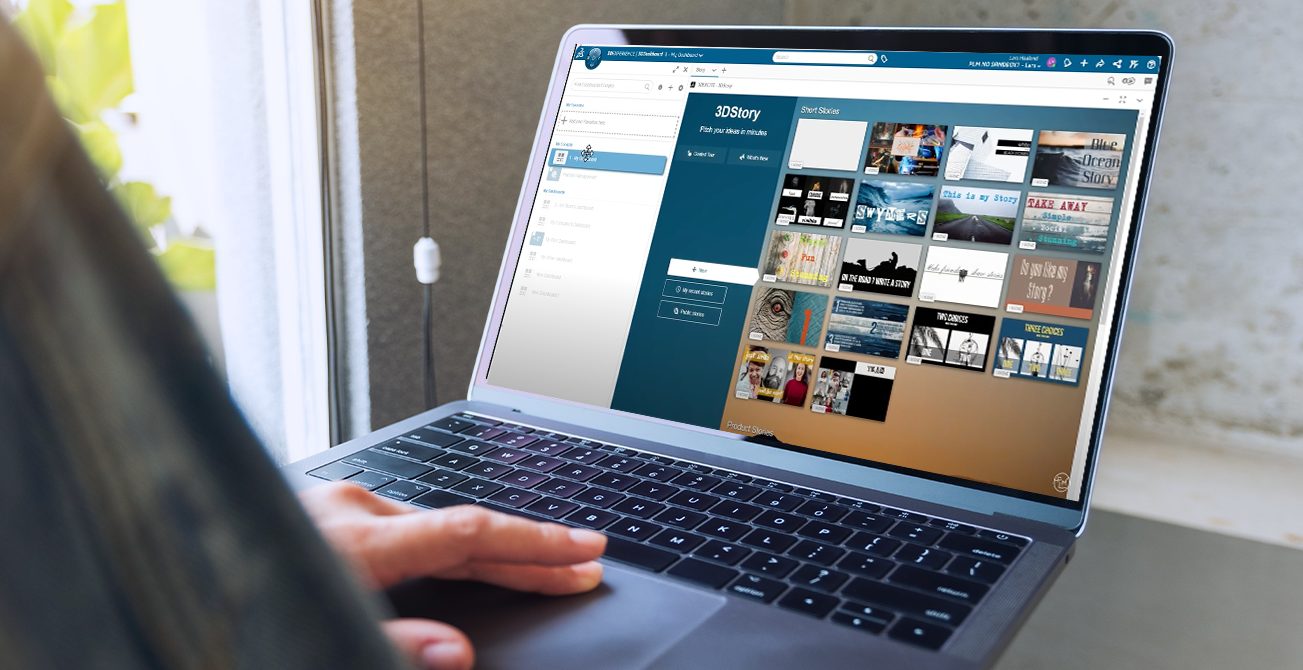

Managing dashboards on the 3DEXPERIENCE Platform can get overwhelming as they multiply over time. But it doesn’t have to be like that. Use these five simple ways to organize and customize your dashboards for easier access and never waste time looking for them again.
See the video below for a step-by-step guide to the 5 simple ways to manage and find your 3DEXPERIENCE dashboards.
Why Should You Manage Your Dashboards?
It’s great to have dashboards on the 3DEXPERIENCE platform to easily find what you are looking for. But once you start to work on multiple projects the list of dashboards can become too long to be efficient anymore. That’s why Lars will guide you to 5 ways to manage this to make you efficient when working.
1: Rename Your Dashboards
- Dashboards are listed alphabetically
- Use meaningful names and prefixes like numbers e.g., 1_Team Dashboard, to position your key dashboards at the top of the list.
2: Use Favorities
- Drag frequently used dashboards into the “Favorite section” for quick access. The favorites section is at the top of your dashboard list
3: Add Emojis to Name Titles
By adding emojis to the title of your dashboards they stand out and become regconizable.
- In Windows: Press “Windows + .” to open the emoji menu
- Add any relevant icon to visually categorize the dashboards
4: Customize Your Dashboard Icons
Instead of adding emojis to the dashboard name, you can replace the default gray icon with a custom image
- Double-click the icon to open the management window
- Upload a JPEG, SVG, or use an image URL
- Drag the image into the icon field to apply
5: Add Background Image or Color
You can use a background color or image to always know what dashboard you are in
- Open the management window
- Upload or select a background image or color and press apply