As SOLIDWORKS celebrates its 30th anniversary, it’s time to look ahead with the new upgrades: SOLIDWORKS Design 2026. I’ve taken a deep dive into the lengthy list of enhancements and handpicked my four favourite updates from this year’s release. As you might expect, AI continues to make its mark, and it is featured prominently in the first two.
1. AI Fastener Recognition & Automatic Mate Creation
Fasteners are an essential part of nearly every assembly, and for years, the Toolbox has streamlined this process with preconfigured mate references that allow components to snap neatly into place.
But when you need to model a custom fastener or download one from an external source, mating components manually can quickly become tedious.
With SOLIDWORKS Design 2026, this changes. When inserting components into an assembly, the software now automatically recognizes parts that resemble nuts, bolts, or washers, and treats them as fasteners. It then assembles them automatically.
No more creating custom mate references, and no more manually applying multiple mates for fasteners that don’t originate from the Toolbox. Just drag, drop, and let SOLIDWORKS do the rest.
2. Automatic Drawing Creation
If creating 2D drawings often feels repetitive or time-consuming, the new automatic drawing creation feature will be a welcome addition.
With a single click, the Auto-Generate Drawing tool creates sheets, views, and suggested dimensions, and it even supports batch creation of multiple drawings. All you need to start using this enhancement is a 3DEXPERIENCE ID. While the feature is still in its Beta phase and may require some manual refinement, it gives you a solid starting point and significantly reduces drafting time. As development continues, its accuracy and usefulness will only increase.

3. Background Import of Neutral Files
Working with non-native 3D file formats is a routine part of many engineers’ workflows, but importing large files can bring everything to a standstill. Long import times tie up valuable CAD resources and leave you waiting rather than designing.
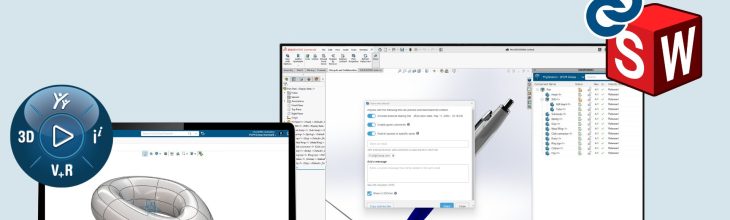
SOLIDWORKS Design 2026 solves this with background processing for file imports. You can select one or several neutral files to import, and they will be queued and processed in the background. Meanwhile, you’re free to continue working on other tasks. When each import finishes, you’ll receive a notification, and you can always check the status in the Task Pane and open completed files instantly.

This enhancement will undoubtedly save engineers valuable time and minimize workflow interruptions, making it well worth the wait for FD/SP01 when this functionality is integrated into the software. It exemplifies the type of substantial improvements that have been progressively incorporated into service packs over the past few years.

4. Synchronized Vault Views
If you use SOLIDWORKS PDM, chances are you’ve experienced that sinking feeling when a computer crashes while files are still checked out, or when a colleague leaves without checking in their work.
In the past, the only remedy was an Undo Checkout, which restored the previous version but discarded all recent changes.
SOLIDWORKS PDM 2026 introduces automatic synchronization of modified checked-out files to the archive server. This means you can now recover your latest changes from an automated backup, without losing any work.
Additionally, this feature enables a smoother workflow when using multiple computers. You can continue working on files across different machines without the need to check them into the vault every time you switch.